Connecting Your Devices
This guide walks you through the initial setup between the Coach's device (Phone/Tablet) and the Player's device (Watch).
Overview
Unlike standard smartwatch apps that require a constant background sync through the "Wear OS" or "Galaxy Wearable" app, Relay FTW uses a direct, high-speed Bluetooth link. You will bond the devices once, and then our app takes over the communication.
Step 1: The Initial Bonding Process
Before opening the Relay FTW app, you must introduce the two devices to each other via system settings.
- On the Watch:
- Go to Settings > Connections > Bluetooth.
- Ensure Bluetooth is ON and the watch is in "Pairing Mode" (usually visible to nearby devices).
- On the Phone/Tablet:
- Go to Settings > Connected Devices > Pair New Device.
- Select your watch from the list of available devices.
- Confirm the pairing code on both screens.
Wear App
As an alternative you can go through the "normal" wear application setup to get your watch connected to your phone.
Step 2: "Bonded" vs. "Connected"
This is the most important concept to understand when using the RelayFTW system.
The RelayFTW Difference
Once the devices are successfully Bonded in your Android system settings, you are done with the system setup.
- The Old Way: Most apps require the Google "Wear OS" or Samsung "Wearable" app to show a status of "Connected" at all times.
- The RelayFTW Way: As long as the devices are Bonded (paired), the RelayFTW app will automatically wake up the Bluetooth hardware and establish its own high-performance connection the moment you start a game.
You do not need to check the Wear OS app for a "Connected" status during the game. The RelayFTW app handles the link independently.
Step 3: Launching the App
- Open RelayFTW Receiver on the Watch.
- Open RelayFTW on your Phone/Tablet.
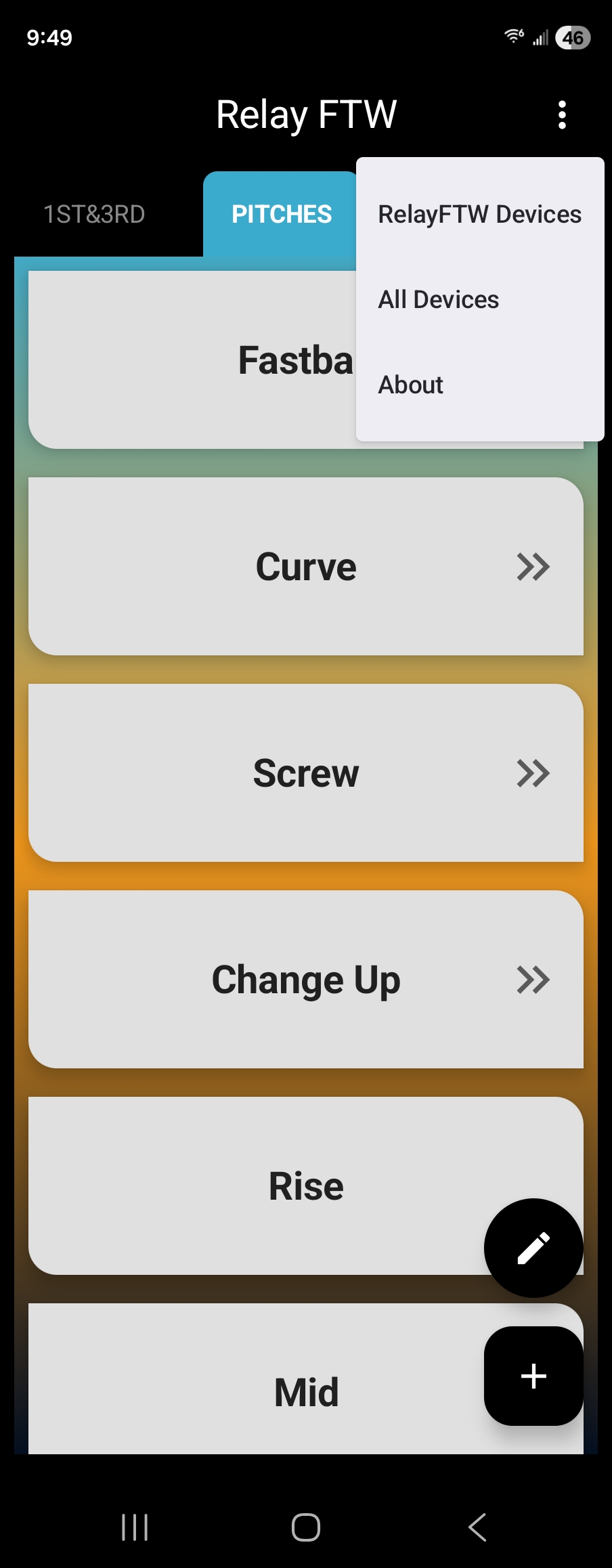
- On the Phone, tap the 3 dots in the upper right corner.
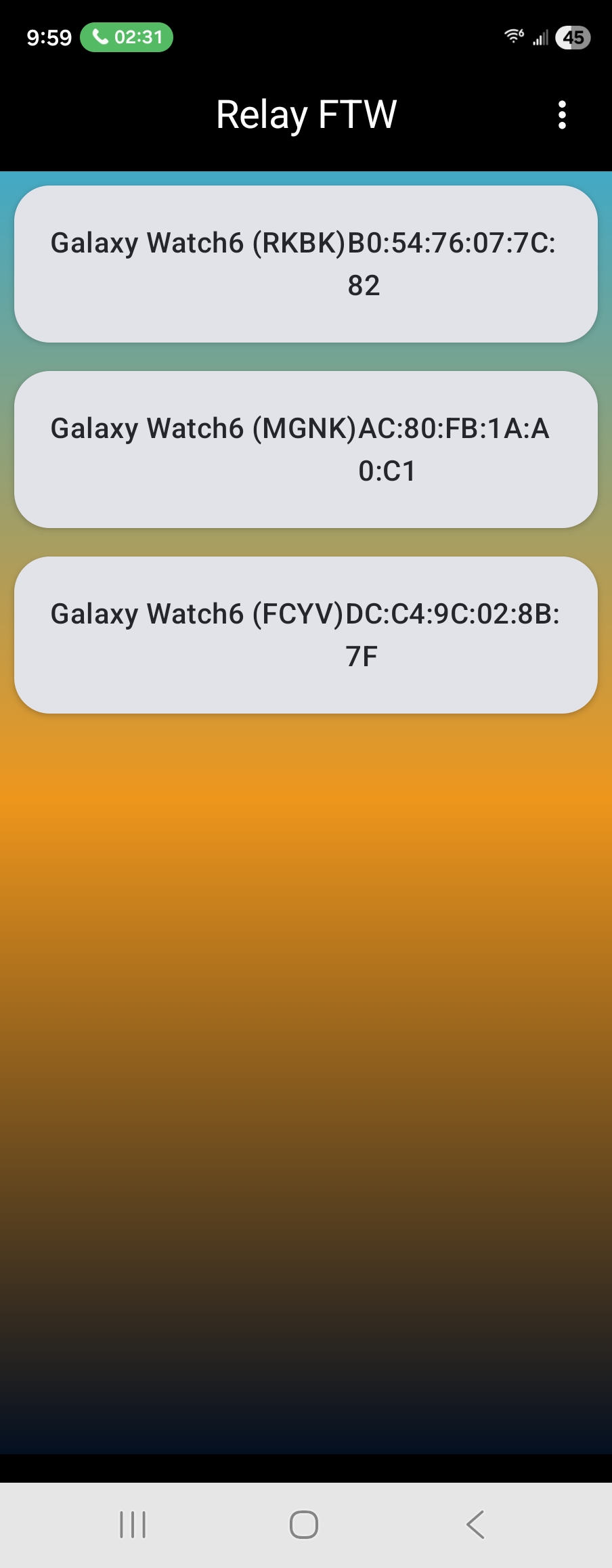
- Select RelayFTW Devices
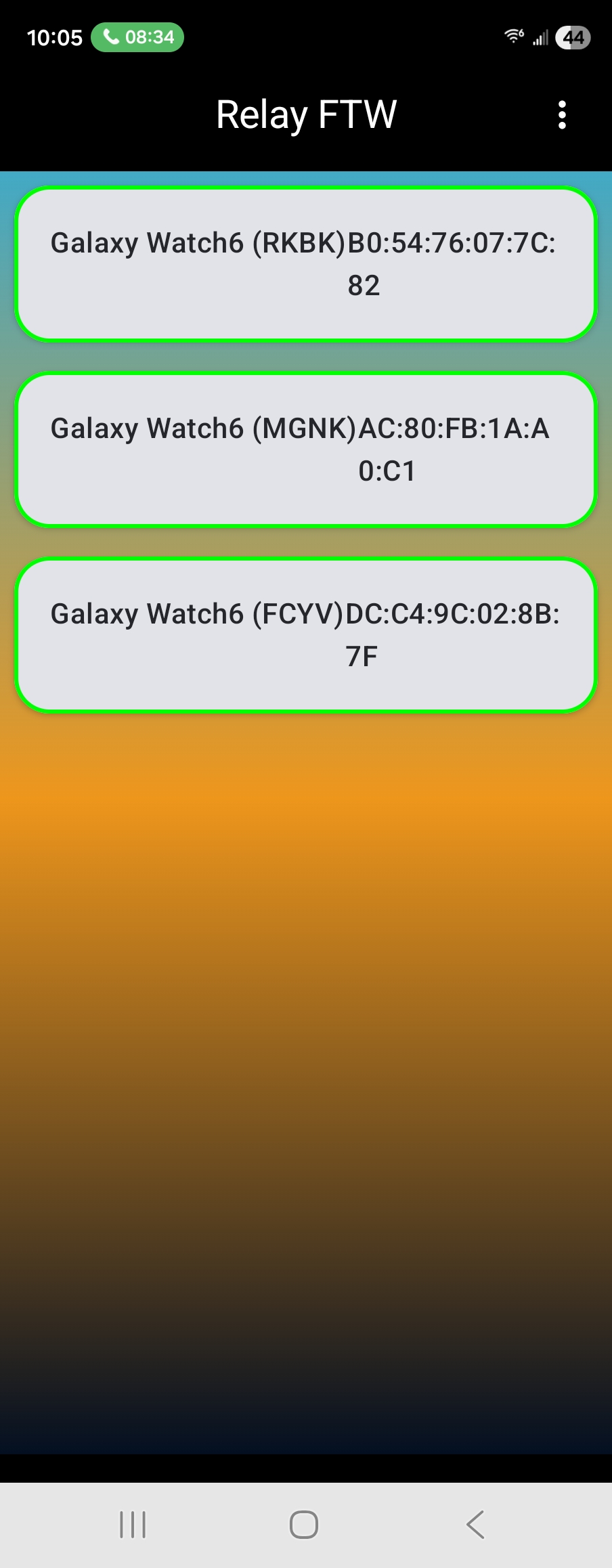
- Click on the devices you want to connect.
- The status indicator in the app will turn Green, indicating the direct app-to-app link is active.
Connections Stored
These connections will be stored in a local database and will automatically connect when the app starts next time.
Troubleshooting the Connection
Resetting the Link
If you are unable to see the watch in the app:
- Toggle Bluetooth: Turn Bluetooth OFF and then back ON on both devices.
- Verify Bonding: Go to your phone's Bluetooth settings. If the watch isn't in the "Saved" or "Paired" list, repeat Step 1.
- Close Background Apps: Ensure other high-bandwidth Bluetooth apps (like music streaming) aren't saturating the connection during the initial handshake.
Battery Optimization
For the best results, ensure that Relay FTW is set to "Unrestricted" under Battery Settings on your phone. This prevents Android from putting the Bluetooth link to sleep while you are in the dugout.
Coach's Workflow
I recommend bonding all team watches to your device at home before your first practice. Once they are "Bonded," you can simply hand the watches to the players at the field; the app will recognize them instantly as soon as they are powered on.